

Download KeyCue – Visual Keyboard Shortcut Helper for macOS
Overview
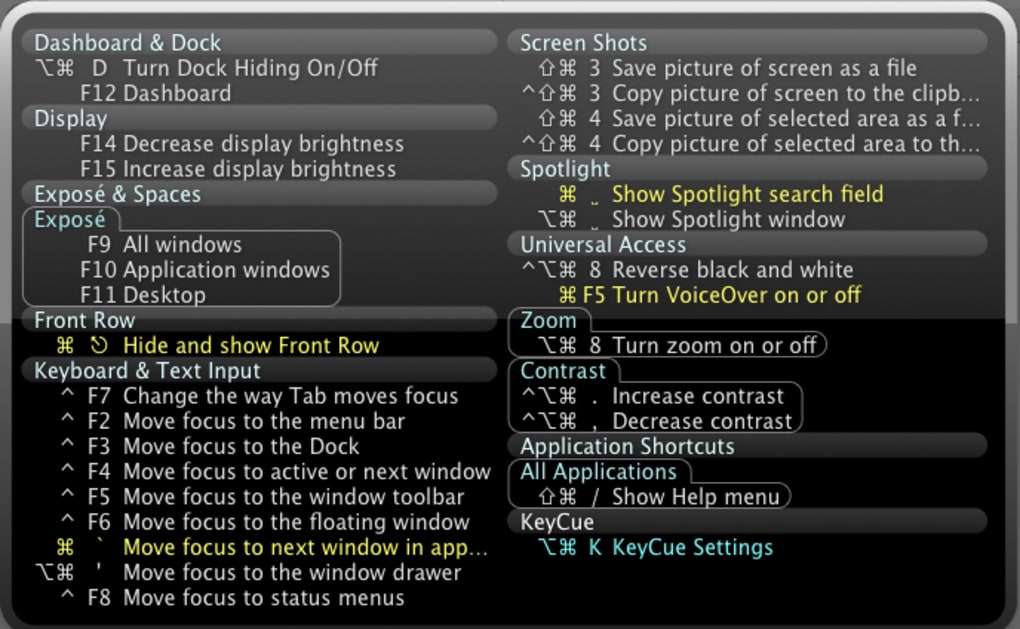
KeyCue is a lightweight yet powerful utility designed to bring the hidden world of macOS keyboard shortcuts into plain view. By simply holding down the ⌘ (Command) key, users are presented with a clear, organized overlay that lists every active shortcut for the current application or system function. This instantly eliminates the guess‑work that many new Mac users—especially those migrating from Windows—experience when trying to become proficient with the OS’s keyboard‑centric workflow.
The overlay appears in the foreground within a couple of seconds, allowing you to glance at the shortcuts without disrupting your current task. While the initial launch may feel a fraction slower on older hardware, most modern Macs respond swiftly, delivering a seamless “hold‑and‑see” experience. KeyCue also offers customization options such as theme selection, view styles, and the ability to create custom shortcuts, although the built‑in theme library is modest.
Overall, the app serves as a practical learning aid, turning the often‑overlooked shortcut catalog into an interactive, on‑demand reference that helps you master macOS efficiency faster.
Key Features
- Instant Shortcut Overlay: Hold the Command key and watch a neatly organized list of active shortcuts appear instantly.
- Category Grouping: Shortcuts are sorted by logical categories such as Dock, Spotlight, Dashboard, and Front Row, making navigation intuitive.
- Custom Shortcut Creation: Define your own shortcuts and have them displayed alongside system defaults.
- Theme & View Options: Choose from light or dark themes and toggle between compact or expanded list styles.
- Login Item Integration: Automatically launch KeyCue at login, with improved handling for renamed applications.
- Sound Effect Respect: Installer completion sounds now follow the “Sound Effects” channel and respect the alert volume set in System Preferences.
- Compatibility Updates: Regular updates ensure smooth operation on macOS 10.8 Mountain Lion and newer releases.
- Minimal Resource Footprint: Designed to run quietly in the background without draining CPU or memory.
Each feature is built with the goal of reducing the learning curve associated with macOS shortcuts. Whether you’re a seasoned power user looking to discover hidden commands, or a newcomer eager to replace mouse‑driven habits with keyboard efficiency, KeyCue’s feature set provides a clear path toward faster, more confident navigation. The ability to view shortcuts in context—right where you need them—means you spend less time searching online documentation and more time applying the commands that actually improve your workflow.
Installation & Usage Guide
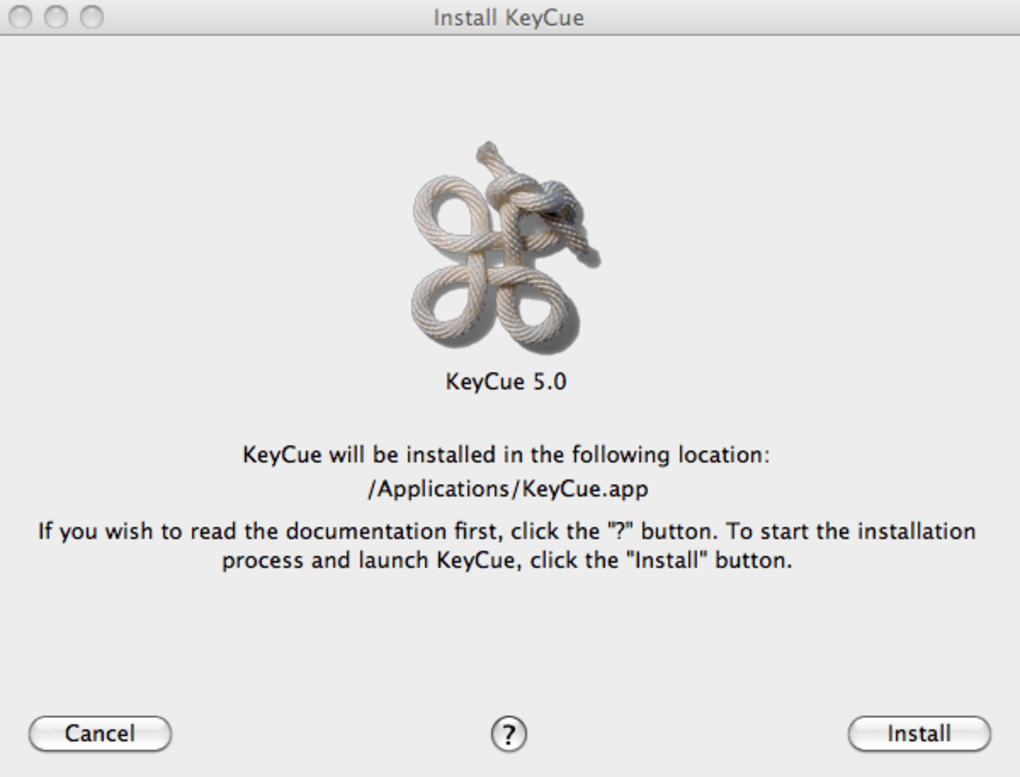
Installing KeyCue is straightforward. Begin by downloading the installer from the official website or a trusted Mac app store. Once the .dmg file is opened, drag the KeyCue icon into your Applications folder. macOS may prompt you to confirm the app’s authenticity; click “Open” to allow the installation to proceed. After the copy completes, you can launch KeyCue from the Applications folder or via Spotlight. The first launch triggers a brief setup wizard where you can enable “Start at login” and select your preferred theme.
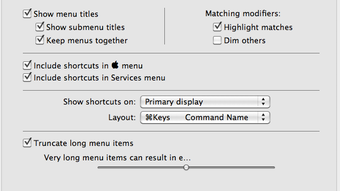
Using KeyCue is equally simple: press and hold the ⌘ key, and a semi‑transparent overlay will appear, listing shortcuts relevant to the active application. The overlay respects your current workspace, so if you’re in Finder, you’ll see file‑management shortcuts; if you’re in Safari, you’ll see web‑navigation commands. To hide the overlay, simply release the Command key. For power users, the Preferences pane (accessed via the menu bar icon) offers deeper control: you can toggle categories, adjust overlay opacity, enable a “compact view” for smaller screens, and add custom shortcuts through the “Custom” tab.
Should you need to uninstall, close KeyCue, then drag the app from the Applications folder to the Trash. The installer also includes a small cleanup script that removes residual preference files, ensuring a clean removal. Regular updates are delivered through an automatic check‑for‑updates mechanism; a notification appears in the menu bar when a new version is available, and you can install it with a single click. This ensures you always have the latest shortcut database and compatibility patches.
Compatibility & System Requirements
KeyCue is engineered to run on macOS 10.8 Mountain Lion and newer, covering a broad spectrum of Apple hardware from older MacBooks to the latest MacBook Pro with Apple Silicon. The application runs natively on both Intel‑based Macs and Apple Silicon (M1, M2, and later), thanks to universal binaries provided in the installer. Minimum system specifications include 512 MB of RAM (though 1 GB is recommended for optimal performance) and at least 50 MB of free disk space for the app and its supporting files.
The developers have taken care to respect macOS security frameworks. KeyCue requests accessibility permissions during its first run, which are required to read system shortcuts and display the overlay. These permissions are handled via the standard System Preferences → Security & Privacy → Accessibility panel, ensuring the app adheres to Apple’s privacy guidelines.
In terms of display compatibility, KeyCue scales correctly on Retina displays and supports Dark Mode automatically, adjusting its overlay colors to remain legible against any desktop background. The app also integrates with macOS’s “Login Items” mechanism, allowing you to enable automatic startup without compromising system stability. Users on older macOS versions (pre‑10.8) will need to upgrade their OS to benefit from KeyCue’s features, as earlier versions lack the necessary accessibility APIs.
Pros, Cons, FAQ & Final Verdict
Pros
- Instant visual access to all active shortcuts.
- Helps Windows users transition smoothly to macOS.
- Low CPU and memory usage, runs quietly in the background.
- Custom shortcut creation expands functionality.
- Supports both Intel and Apple Silicon Macs.
Cons
- Limited built‑in theme options; users may desire more visual customization.
- Initial overlay appearance can be slightly delayed on very old hardware.
- No built‑in shortcut learning mode (e.g., quizzes or reminders).
KeyCue delivers exactly what its tagline promises: an instant, visual catalogue of macOS shortcuts that makes learning the system’s keyboard language both fast and enjoyable. While the theme selection could be richer, the core functionality is rock‑solid, and the low resource footprint ensures it never interferes with your primary workflow. For anyone looking to boost productivity on a Mac, especially former Windows power users, KeyCue is a worthwhile addition to the toolbox.
Frequently Asked Questions
-
How do I trigger the shortcut overlay?
Simply press and hold the ⌘ (Command) key. The overlay will appear after a brief pause, showing shortcuts relevant to the active application.
-
Can I add my own custom shortcuts?
Yes. Open KeyCue’s Preferences, go to the “Custom” tab, and define new shortcuts. They will appear alongside system shortcuts in the overlay.
-
Is KeyCue compatible with macOS Ventura and later?
Absolutely. The developers release regular updates to maintain compatibility with the newest macOS releases, including Ventura, Monterey, and future versions.
-
Does KeyCue consume a lot of battery on a MacBook?
No. The app runs as a background service with minimal CPU usage, so its impact on battery life is negligible.
-
How do I uninstall KeyCue cleanly?
Close the application, drag it from the Applications folder to the Trash, and run the included cleanup script to remove preference files.
Conclusion & Call to Action
In summary, KeyCue bridges the knowledge gap that often slows down Mac users new to the platform. Its instant, on‑screen shortcut guide is both intuitive and efficient, allowing you to memorize commands through repeated exposure rather than endless web searches. While a richer theme library would be a welcome addition, the core functionality—quick overlay, custom shortcuts, low resource usage—makes it an indispensable utility for anyone aiming to work faster on macOS.
Ready to supercharge your productivity? $Free download KeyCue today and start mastering Mac shortcuts with just a press of the Command key!







